Open it for the first time and there is plenty on screen: the coach home, the leak diagnosis, the practice centre, the AI coach, and a row of numbers you have probably not clicked yet.
This is not a strategy guide. It does one thing: say what question each screen answers, so you know which one to open today. Every section is short, with links out where you want to go deeper.
If you have not downloaded it yet, start at the download page; for getting your hand history out of PokerCraft, see this guide.
The screenshots show the app’s current Chinese interface. The screen names below are the English ones this site uses for them.
Two places to remember
- It opens on the coach home. Closed it? “Coach -> Coach home” in the top menu
- The “Coach” menu at the top has five entries: coach home, leak diagnosis, practice centre, AI coach, detailed statistics. Five of the screens described below live there
The rest is on the main screen: filters and the statistics row across the top, the hand list and the replayer underneath.
Coach home: what to do first today
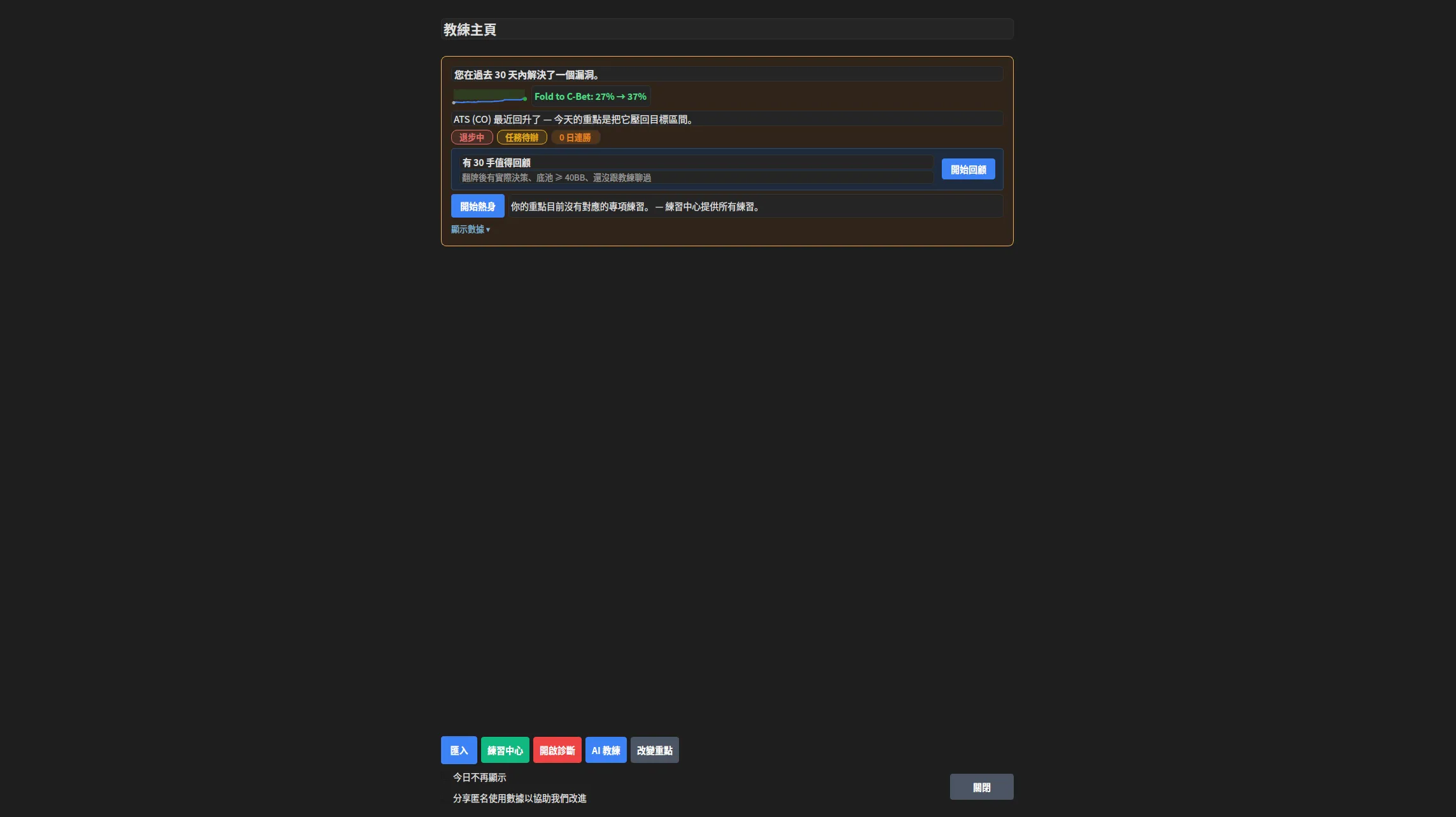
It answers “where do I start today”. The conclusion from your last review sits at the top in your own words, and under it: how many hands are worth going back to today, which stage of the leak you are fixing you have reached, and a button that starts a warm-up straight away.
It is the one screen where you do not have to decide what to look at — it has decided for you.
The dashboard statistics row: how am I playing overall

It answers “what does this batch of hands look like as a whole”. One row: hands, VPIP, PFR, ATS, 3-bet, net profit, win rate, rake. The filters on the left decide which hands the row is computed from — switch stake level and the whole row follows.
The first time, two of them are enough: hands decides whether the rest mean anything, and VPIP decides how wide you are playing.
- What VPIP is, and where its target band comes from: what VPIP is in Texas Hold’em
- The other abbreviations have a post each: ATS, 3-bet, fold to 3-bet, 4-bet, cold call
Detailed statistics: the same numbers, taken apart
It answers “which seat is dragging this number”. The dashboard row is the total; here it is split by position and by spot — the same VPIP running high from early position and running high from late position are two completely different problems.
Where: Coach -> Detailed statistics.
The leak diagnosis report: which one should I fix first
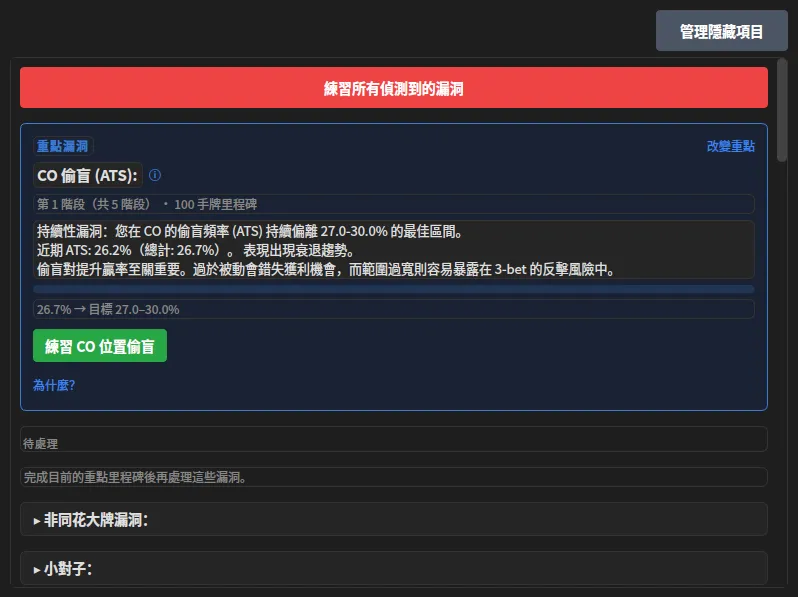
It answers “of all these numbers, which one first”. It does not only tell you that you are off; it writes down which way and by how much — “CO steal (ATS): 26.2% recently, target 27.0-30.0%” — and puts a one-click drill under every row, which takes you straight into practice for that leak.
Where: Coach -> Leak diagnosis.
The target bands are not set by feel; where each number comes from is in its own post (the links in the previous section).
The practice centre: you know what to fix, so where do you drill it
It answers “how do I turn this into a habit”. Every drill lives here and can be opened whenever you want: the preflop trainer, c-bet, fold to c-bet, stab, WTSD. The one-click drill in the leak diagnosis just picks one of them for you.
Where: Coach -> Practice centre.
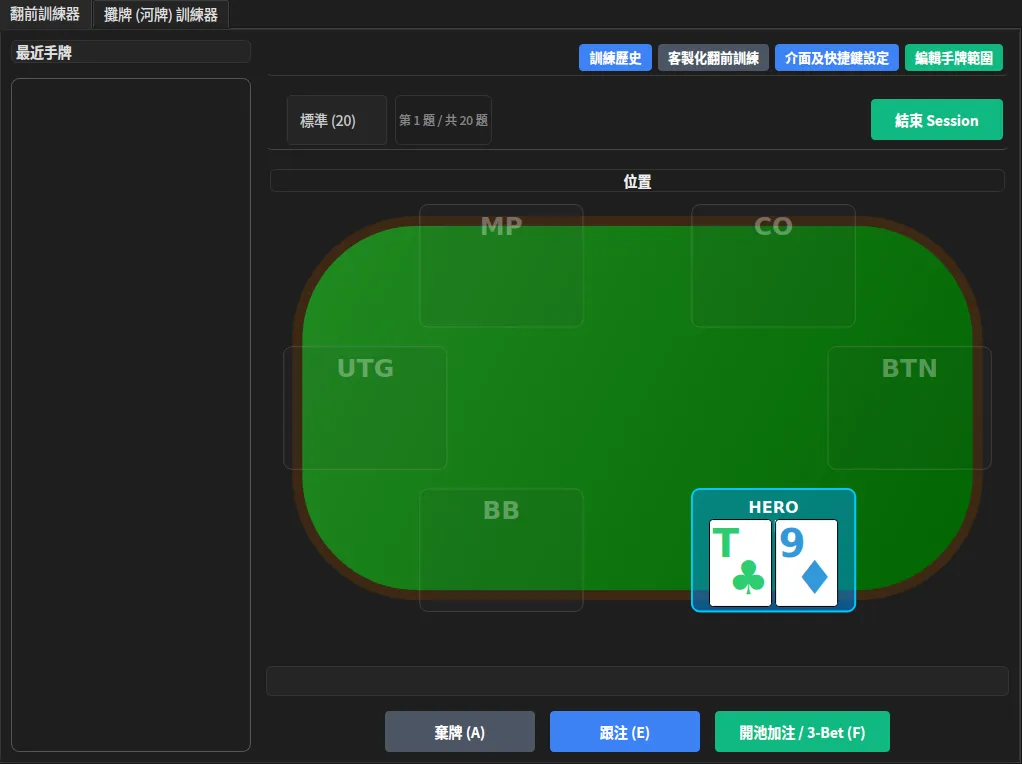
The preflop trainer needs no hand history at all, so it works the moment you install, before anything is imported. A question is one position, one hand, a few action buttons. The default ranges it judges by are listed in full here: Texas Hold’em preflop range charts, all 15 grids.
Want to try a round before installing anything? The browser version, the preflop trainer, asks opening questions only, from the same default ranges.
The hand list and the replayer: what actually happened in that hand
The list answers “which hands are worth going back to”. The filter row narrows things to one stake level or one time range, or searches a hand number directly.
The replayer answers “what happened on each street”: the table replayed, plus the action written out street by street. Still unsure after watching it? Take that hand straight into the AI coach.
The opponent profile: what kind of player is sitting across from you
It answers “how do I play against this person”. A player-type badge at the top, nine numbers in two rows underneath — VPIP, PFR, 3-Bet, F-Steal, F-3B, CBet, F-CBet, WTSD, Call 3B — and your own notes at the bottom.
The badge appears only after 30 hands, and before that you get the numbers alone. On fast-fold tables the seat changes every hand, so an opponent’s sample builds far more slowly than your own: the badge is a first impression, not a conclusion.
The AI coach: did I play this one right
It answers “was there something wrong with the way I played that”. What separates it from a general AI chat is that it already knows who you are: open the hand and ask, and it answers with your overall statistics and the leak you are currently working on. Reach a conclusion and one click saves it into your coach notes; open the coach home the next day and it reminds you in your own words.
Where: Coach -> AI coach, or “Discuss this hand” inside the hand replayer.
No Windows machine, or nothing imported yet? The same coach has a browser version: Lite Coach.
The session summary: how did that session go
It answers “what just happened in that session”. After an import you get the biggest changes of the session (which number improved, which slipped), the worst hand you played, and how many hands are worth reviewing today. Live play is covered too: File -> Record live session.
What next
Once you have been round every screen, the next step is not to open all of them — it is to pick one number and start.
- Not downloaded yet: download page
- How to export your hand history: downloading your Natural8 hand history
- Want to understand the numbers themselves first: what VPIP is in Texas Hold’em
Screenshots in this post are from RushCraft v0.5.0 (Windows).